Batch File Rename Mac: Browser Workflow for Folders
Batch file rename Mac folders in a browser using filename tokens, preview checks, and a ZIP export. No Automator setup, terminal commands, or installs.

Mac can rename a folder of files, but the built-in flow gets awkward when you need more than a quick find-and-replace. A product folder, shoot delivery, or client export usually needs tokens: SKU, descriptor, position, date, and the original extension. This workflow gives you a batch file rename Mac process in a browser tab, with a real preview before anything leaves your machine.
Batch file rename Mac workflow

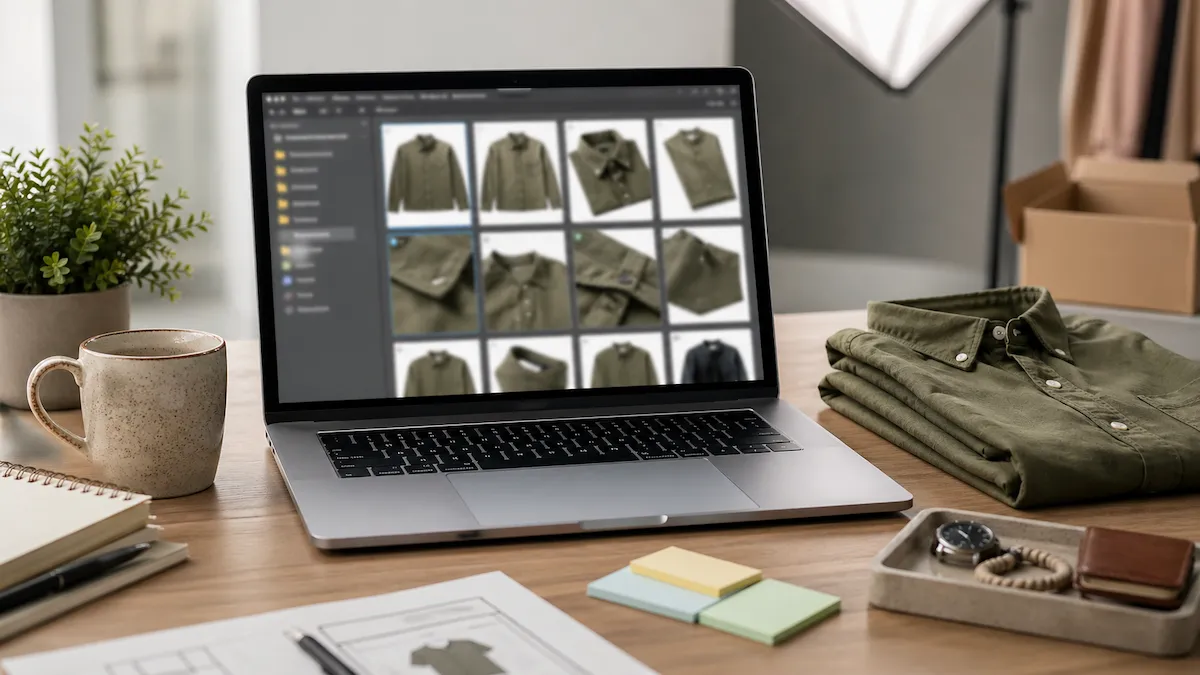
A preview-first workflow lets you test a Mac folder rename before exporting the final copies.
The goal is simple: turn a messy folder into filenames that a client, store, or search crawler can understand. Finder can handle a basic replace. Automator can do more, but it makes you build a mini app before you rename one folder. Terminal works if you are comfortable with shell patterns. Most people need something between those extremes.
Renamerly fits that middle lane. You open the Renamerly workspace, drop the folder, write a format once, check the preview, and export renamed copies. Your originals stay untouched.
One real before-and-after:
Before: IMG_3492.jpg.
After: linen-shirt-front-001.jpg.
That is not just prettier. It sorts correctly, reads clearly in a client handoff, and gives ecommerce platforms a useful filename instead of a camera default.
Why Finder is not enough for bulk rename work
Finder's rename tool is fine for three quick jobs: replace text, add text, or apply a simple sequence. The problem starts when your folder needs business context.
A Shopify operator may need the product handle first, then the shot descriptor, then the position. A photographer may need the shoot date, client slug, and sequence number. A support team may need ticket ID plus export date. Finder does not know any of those fields. It only sees the old filename.
That is why the format matters. A format like
{val:sku}-{descriptor}-{seq:3}{ext} gives every file the same structure:
linen-shirt-front-001.jpg, linen-shirt-back-002.jpg, and
linen-shirt-detail-003.jpg. The rule is readable before you run it, and the
preview catches mistakes before export.
There is also a confidence problem. Finder renames the selected files in place. That is fine when you are renaming personal screenshots. It is stressful when the folder came from a paid shoot or a product launch. A browser export gives you a safer loop: original folder on the left, renamed copies in a ZIP, and no need to undo a system-level rename if the pattern was wrong.
Step-by-step workflow
Use this when the files are already on your Mac and you want a clean output folder without installing another desktop utility.
- Open the workspace. Go to the Renamerly workspace in Safari, Chrome, or Arc. The rename runs client-side, so the original files stay local to your browser session.
- Drop the folder. Drag the folder from Finder onto the workspace. The inbox shows each file and keeps the original extension attached.
- Choose a starter template. If the folder is product photography, start with the ecommerce template. If it is a client delivery, start with the photographer template. You can also build your own pattern with the format builder.
- Set descriptors. Use short, predictable labels like
front,back,detail,lifestyle, orbox. Avoid spaces. Hyphenated filenames behave better across stores, zip files, and URLs. - Preview the first ten files. Check the generated names before export.
If two files collide, add
{seq:3}or{position}to the format. - Export the ZIP. Download the renamed copies and unzip them into your delivery folder. Your original Finder folder remains unchanged.
Pitfalls we have seen
- Naming the Mac instead of the files. Searches like
rename macbookandrename user folderare a different problem. This workflow is for renaming files inside a folder. - Using spaces in product filenames. Spaces turn into
%20in URLs and make filenames harder to scan. Use lowercase words with hyphens. - Skipping the preview. A bulk rename is only fast if you catch mistakes before export. Preview the pattern against real filenames.
- Dropping the extension. Always keep
{ext}at the end of the format. A clean filename that loses.jpgor.pngis not useful.
What to use this for
This is a strong fit for product photos, client delivery folders, content exports, design assets, and any Mac folder where the filename needs more structure than Finder can provide. If you are working with RAW files, the same pattern applies, but an EXIF-based workflow will be more specific.
It is also useful for shared folders. If a designer, store owner, and virtual
assistant all touch the same assets, the filename becomes the one label
everyone sees. A consistent pattern like sku-view-position removes the need
for a separate explanation in Slack or email. The folder tells the story.
Open the workspace when your folder is ready, write the naming rule once, and ship a clean set of files without building an Automator action first.
Keep reading